Here's my short instructions...
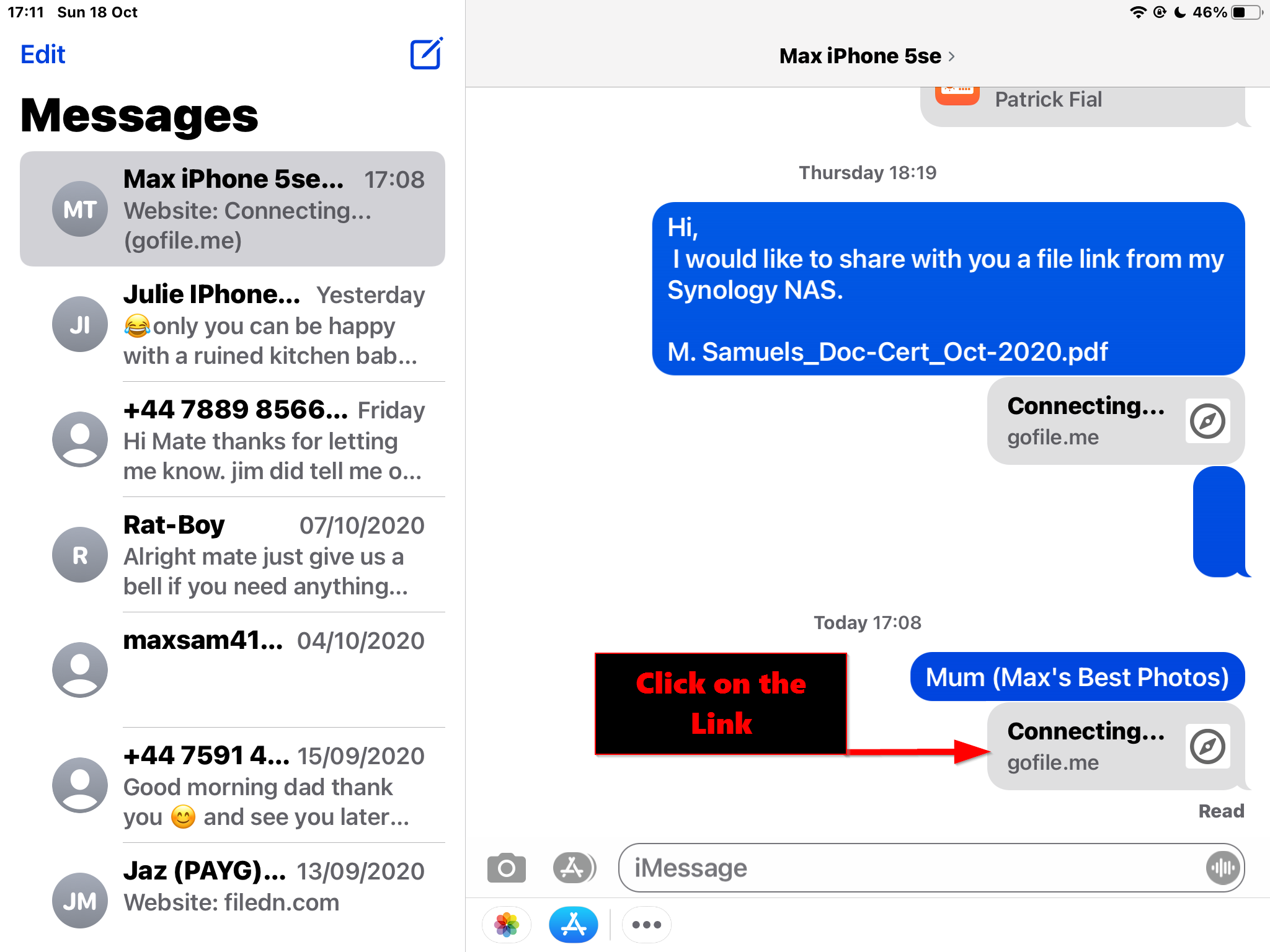
Click on my link.
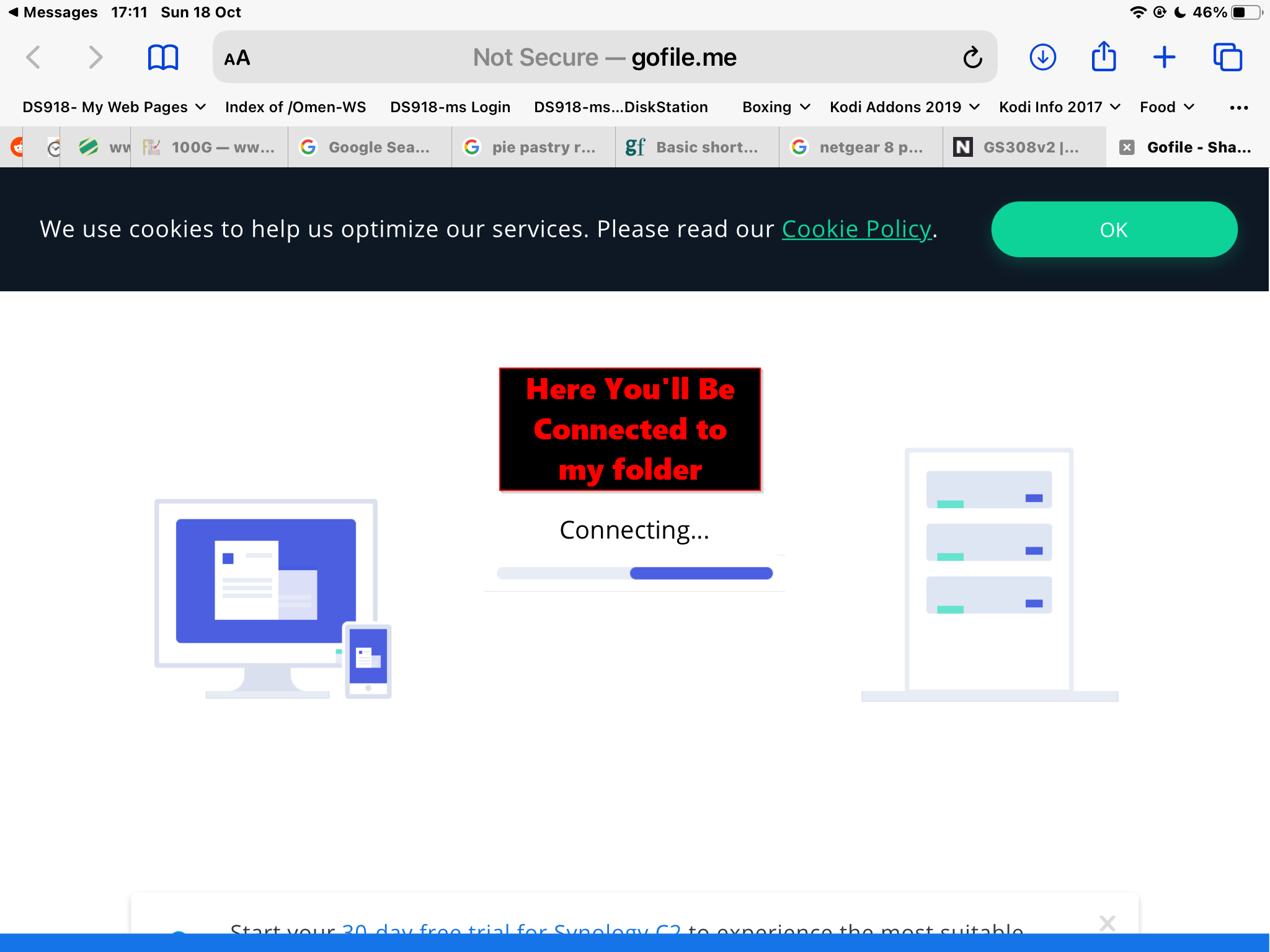
Connect to my Server.
Now you can download ALL Images in the Folder or Single Images.
Goto step 4 for Single Images.

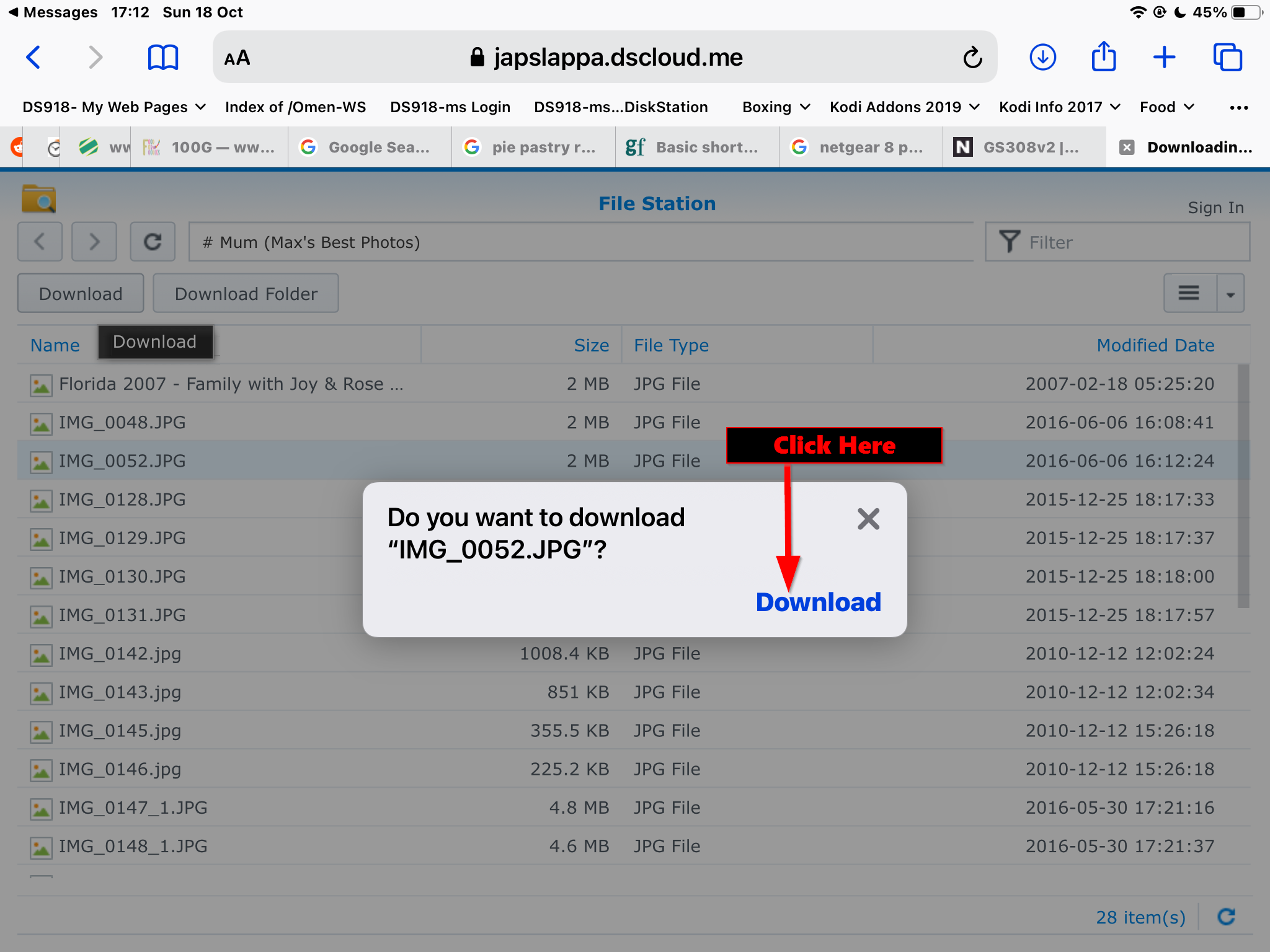
How-To Download Single Images, Shown Here...
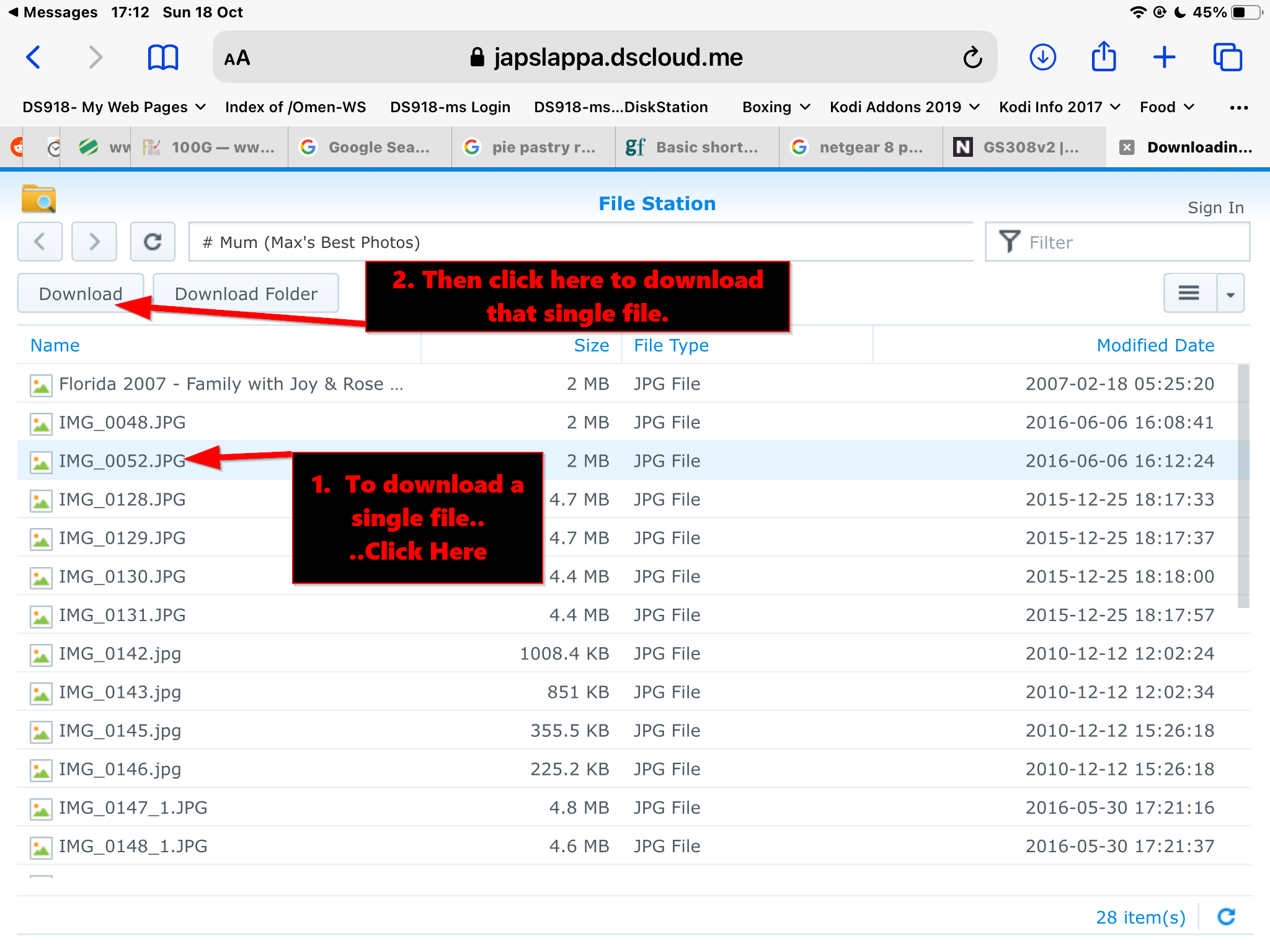
Click.. "Download"
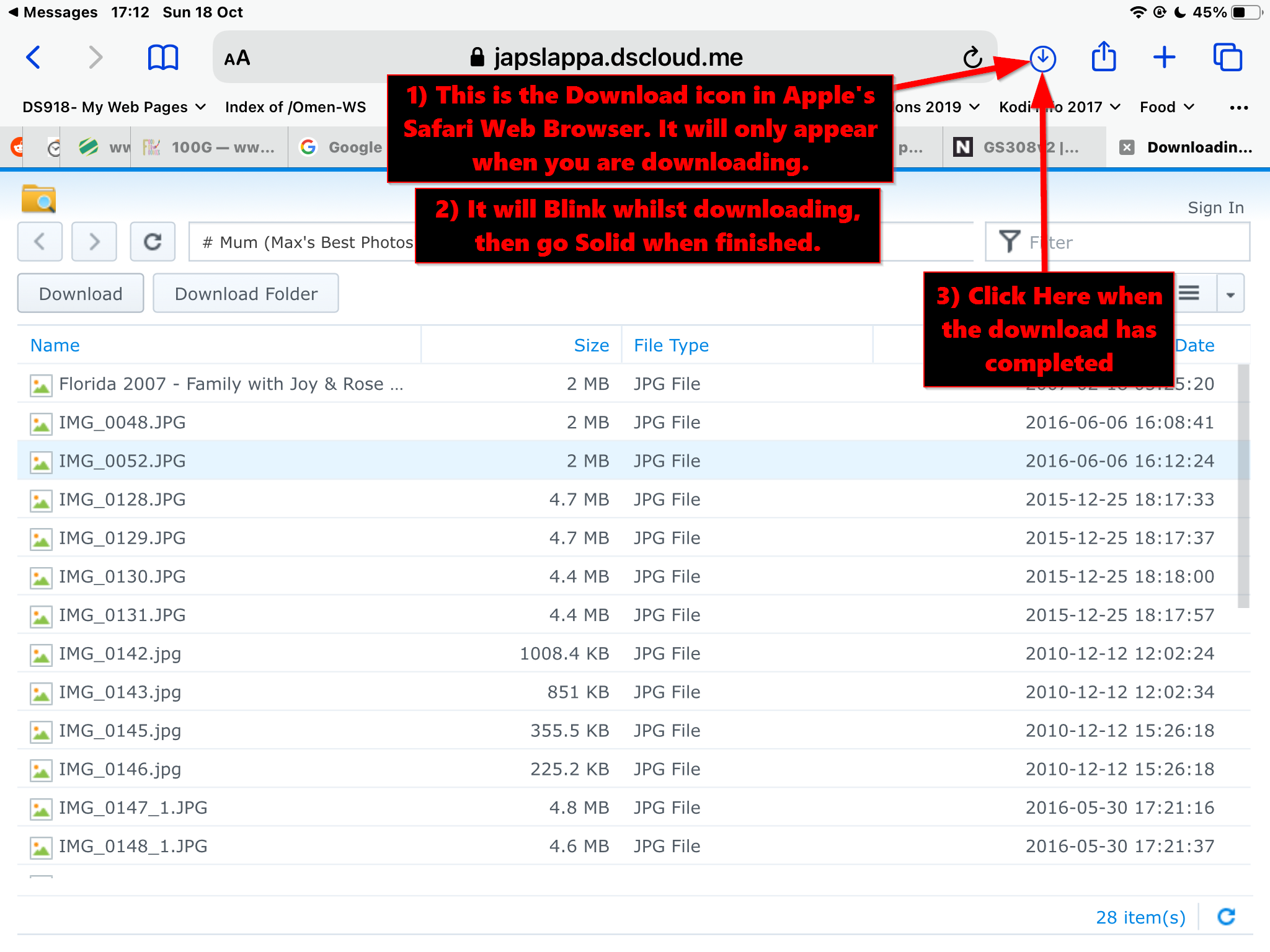
Look for the Download Icon in Apples Safari Web Browser, Shown Here..
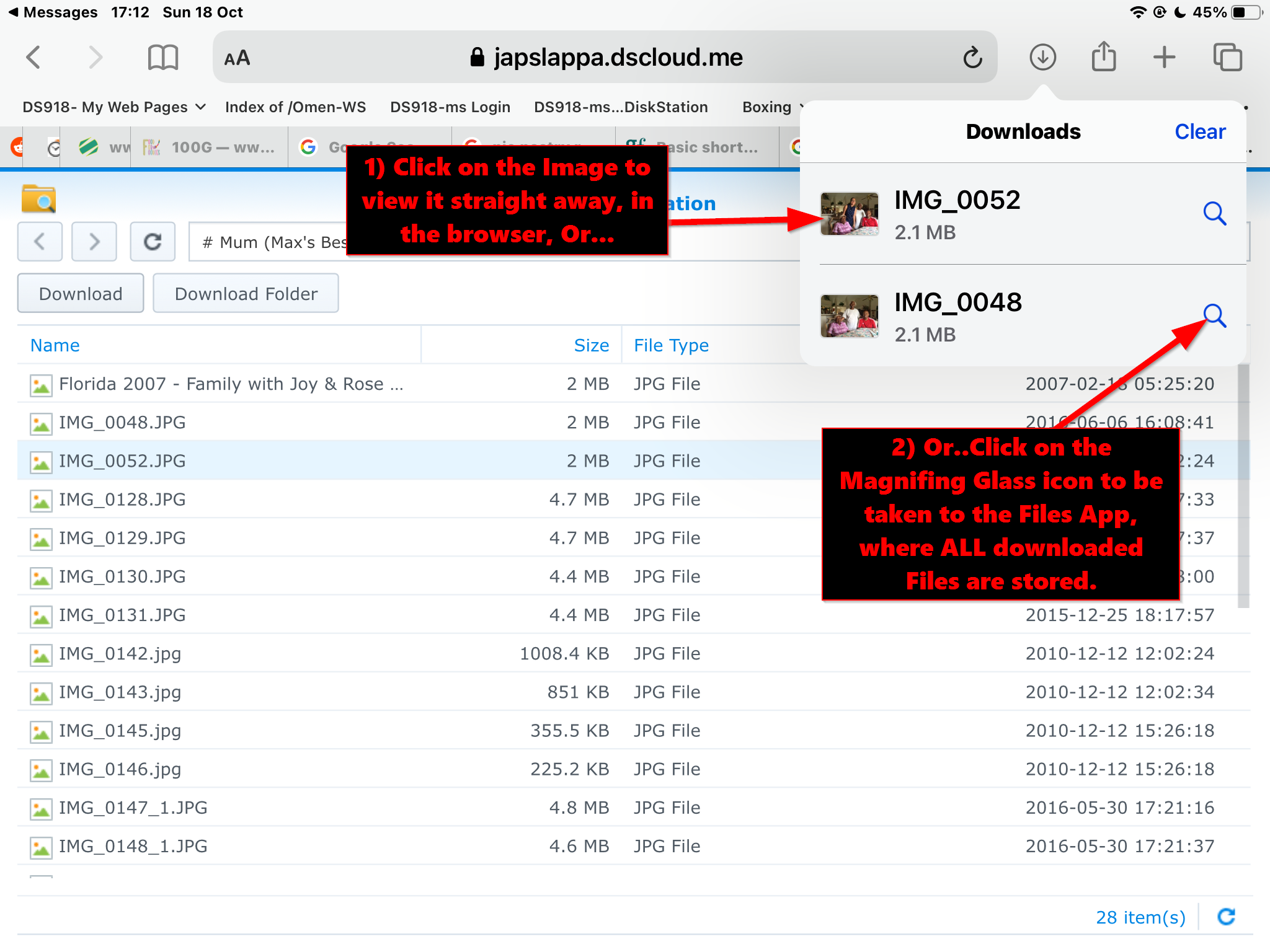
Viewing the downloaded Images... In your web browser... or in the Files App.
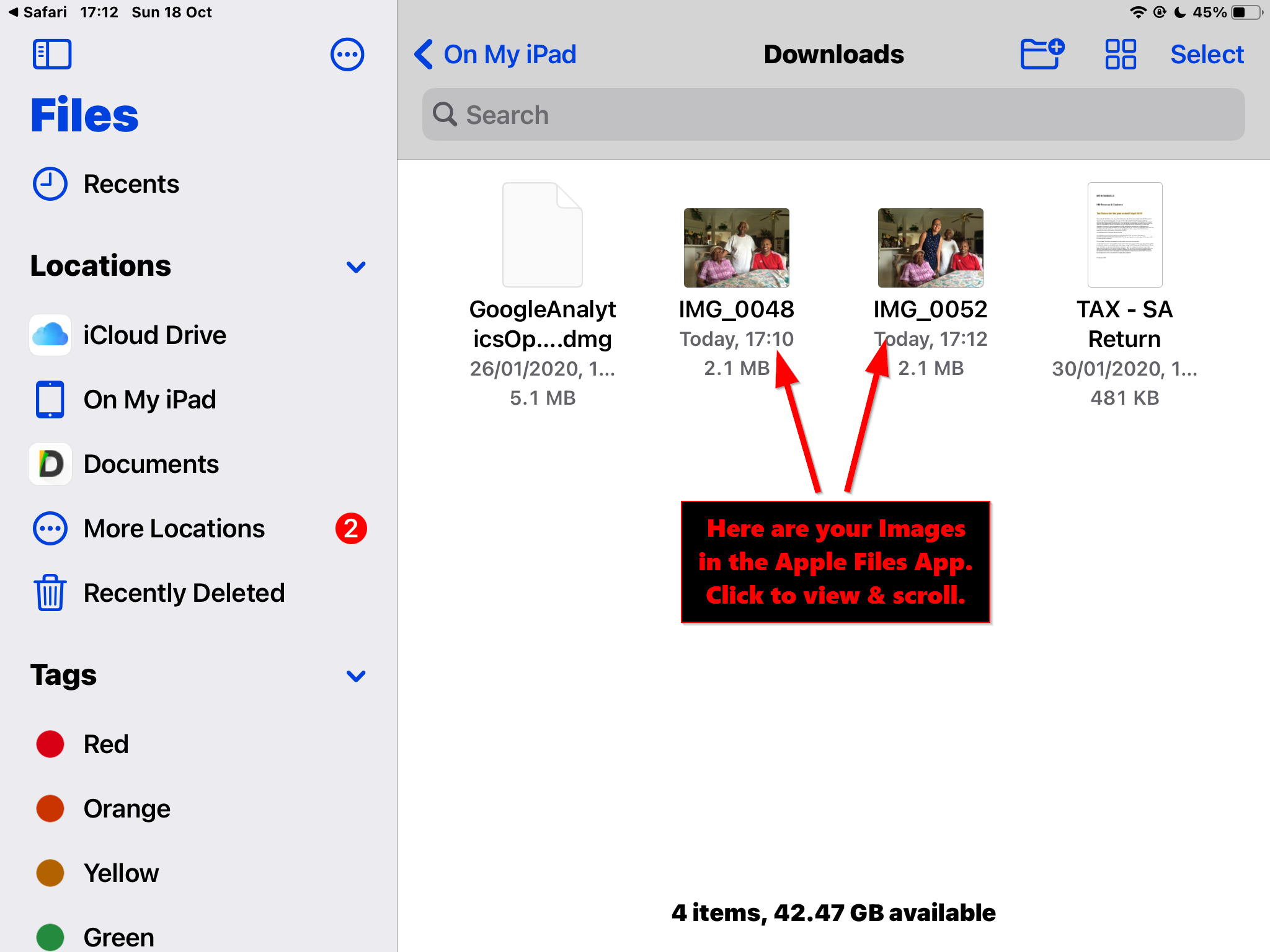
Viewing the downloaded Images... In the Files App.
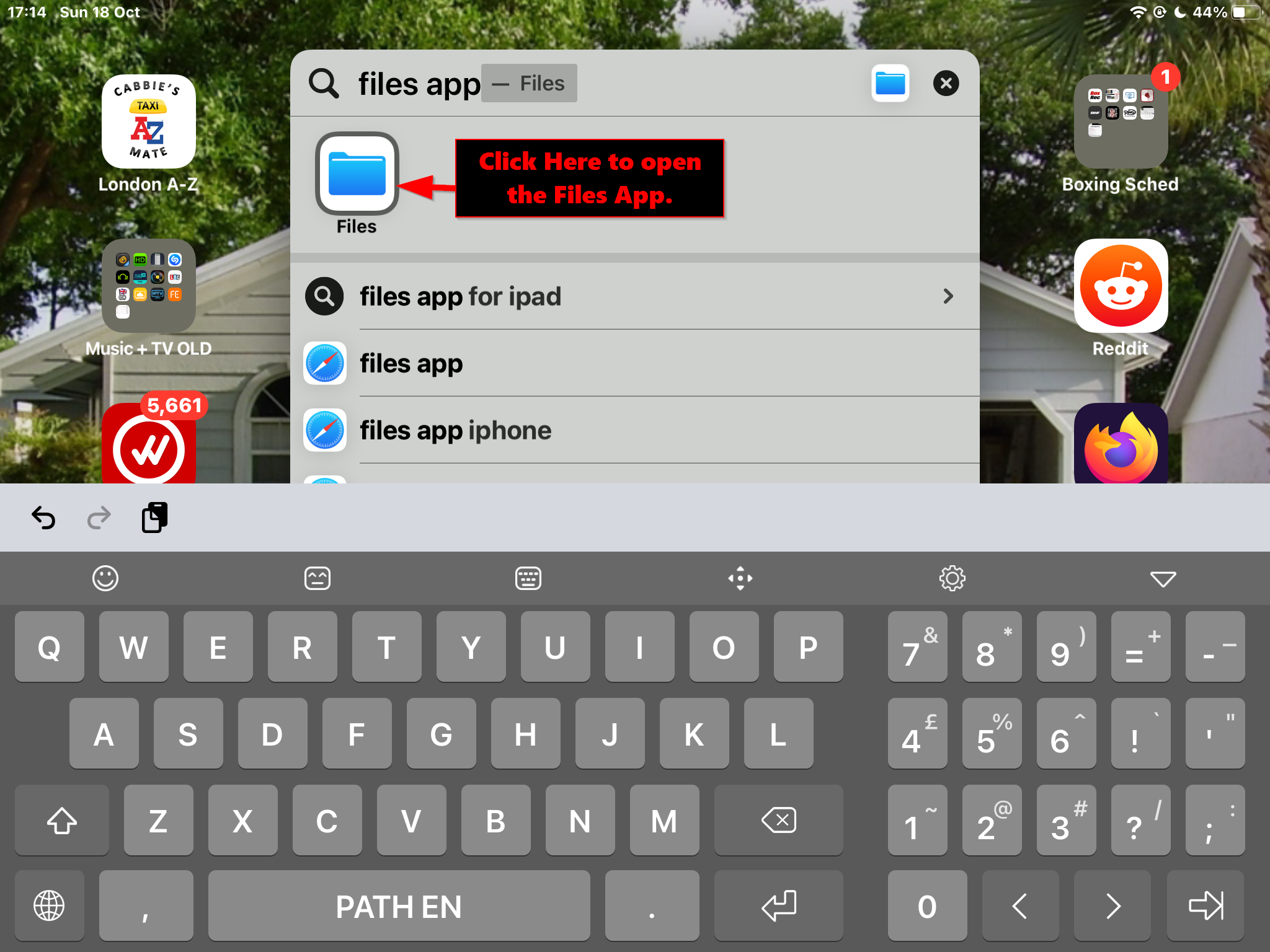
Searching for the Files Apps on an iPad... Or ANY Apple device.
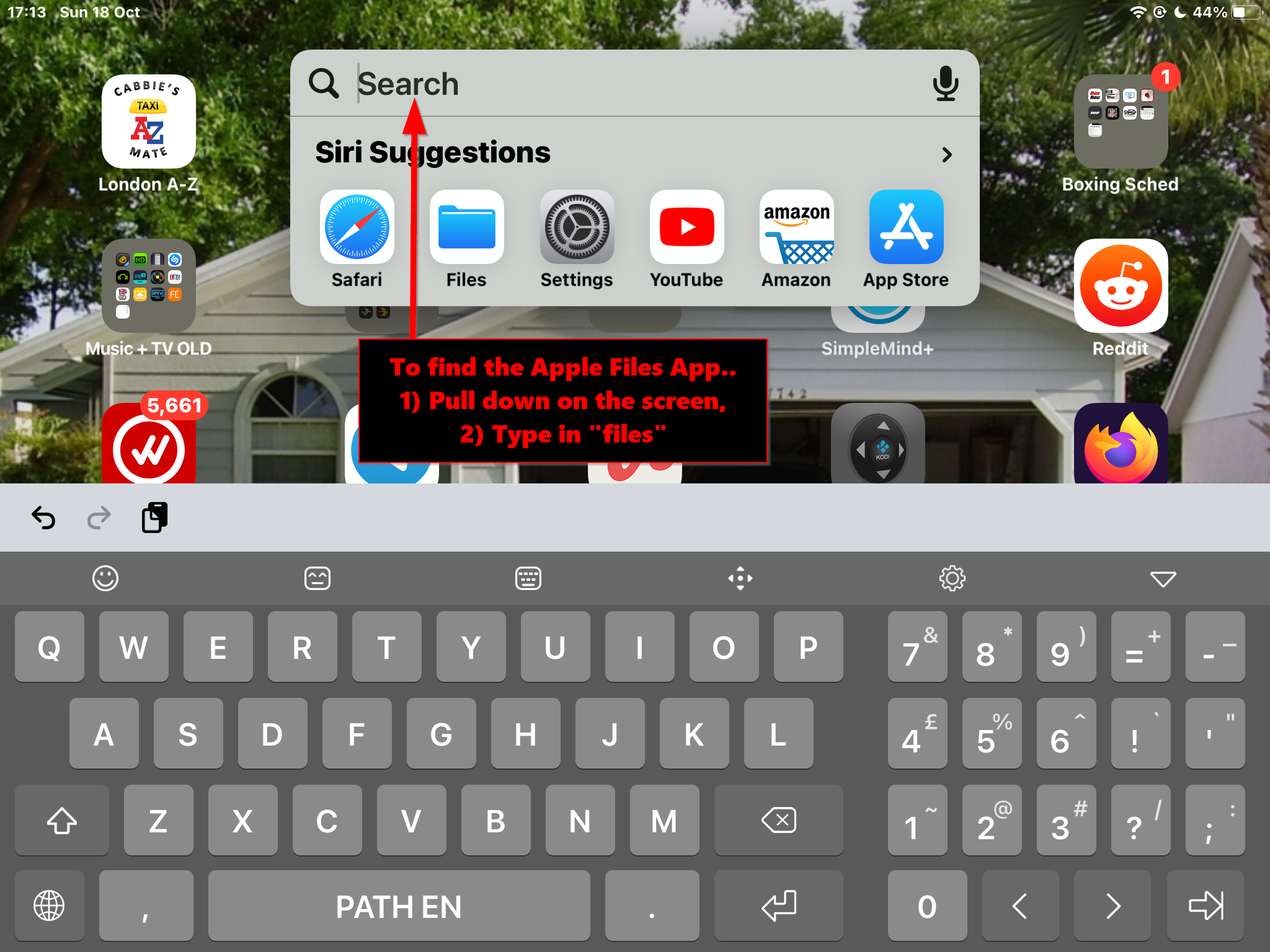
Click on the Icon...